
Touch Typing and Keyboard Ergonomics for Kids Guide
Learn healthy keyboard posture, home-row finger placement, and realistic typing speed benchmarks by grade for elementary students.
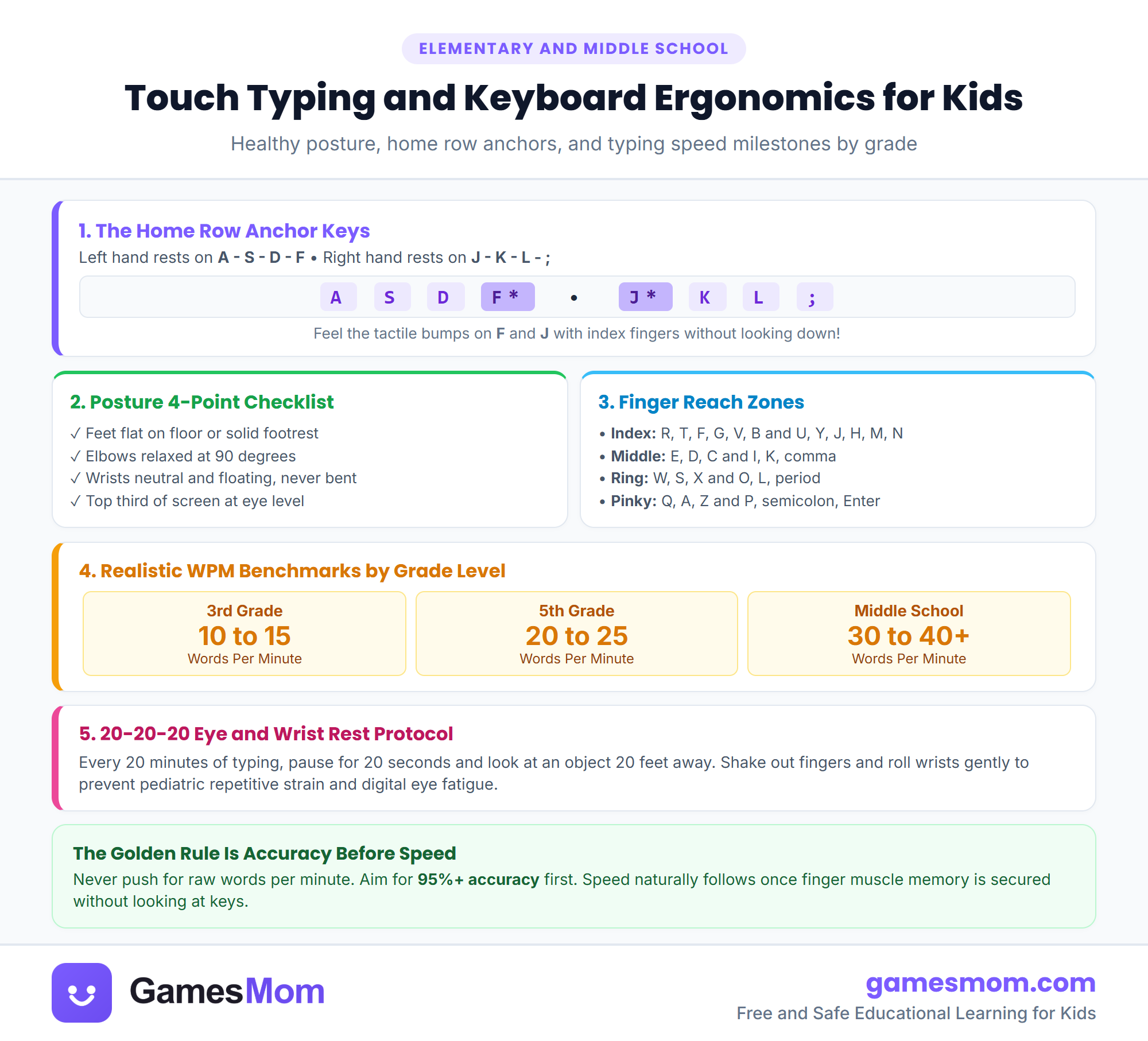
- Touch typing eliminates hunting and pecking, freeing working memory for creative writing.
- The home row anchor (ASDF and JKL;) provides a physical compass for finger coordination.
- Proper posture prevents neck strain: screen at eye level and elbows at 90 degrees.
- Focus on ninety-five percent accuracy before pushing for words per minute speed.
- Cornell University Human Factors and Ergonomics School Computer Guidelines
- Graham et al. Handwriting and Keyboarding in Written Expression
Why touch typing is an essential literacy skill
In modern classrooms, laptops and tablets have replaced pencil and paper for essays, state testing, and research reports. Yet few schools explicitly teach touch typing. When a child hunts and pecks with two index fingers, looking back and forth between the screen and keyboard, their working memory becomes saturated by letter finding. Explore our interactive tool in typing games for kids.
Cognitive load research proves that when keyboarding becomes automatic, writing quality improves dramatically. Students who type with muscle memory can compose longer sentences, use richer vocabulary, and edit their ideas fluidly because their brain is focused on expression rather than finger navigation.
Touch typing is not about extreme speed. It is about fluency: allowing thoughts to flow directly onto the digital page without mechanical bottlenecks.
The home row anchor and keyboard ergonomics
Every typing journey starts on the home row. The left hand anchors on A, S, D, and F, while the right hand rests on J, K, L, and semicolon. Show your child the subtle tactile bumps on the F and J keys. These bumps allow typists to reposition their hands without looking down.
Ergonomics matter just as much as finger placement. Children working at adult desks often hunch forward with dangling feet, causing neck and wrist strain. Ensure your child feet are flat on the floor or supported by a footstool.
Keep elbows bent at ninety degrees with wrists hovering neutrally above the keyboard. The top of the laptop or monitor screen should align with eye level to prevent forward head posture. Check our detailed guide in home row typing practice.
Realistic typing speed benchmarks by grade
Parents often wonder what speed their child should aim for. In third grade, ten to fifteen words per minute (WPM) with ninety percent accuracy is a wonderful foundation. By fifth grade, students should comfortably type twenty to twenty-five WPM.
Middle school students working on essays benefit from thirty to forty WPM. Always emphasize accuracy over speed. A student who types forty WPM with constant errors spends half their time hitting backspace, which disrupts their thinking rhythm.
Ten minutes of daily gamified typing practice produces remarkable progress. Track your child progress with our free, child-safe typing speed test online.
Frequently asked questions
What age should children start learning touch typing?
Children are physically ready for touch typing around third grade (ages eight or nine), when their hands are large enough to reach keyboard keys comfortably.
Why does accuracy matter more than speed in early typing?
Typing with high accuracy builds reliable muscle memory. If a child types fast with frequent errors, they build bad motor habits that are very difficult to unlearn.
How can I adapt an adult desk for child keyboard ergonomics?
Place a box or stool under their feet so they rest flat, use an external keyboard on a lower tray, and raise the laptop screen with books so the top edge aligns with eye level.